Configure OneLogin SAML SSO for Yoffix
Yoffix supports Single Sign-On (SSO) via OneLogin using SAML 2.0.
This allows users to authenticate with their OneLogin credentials when accessing Yoffix, ensuring centralized identity management and secure access control.
For other supported SSO providers please see the dedicated pages
All SSO settings in Yoffix are available under:
Settings → SSO
How to Set Up OneLogin SAML SSO
Step 1: Log in to OneLogin Admin Dashboard
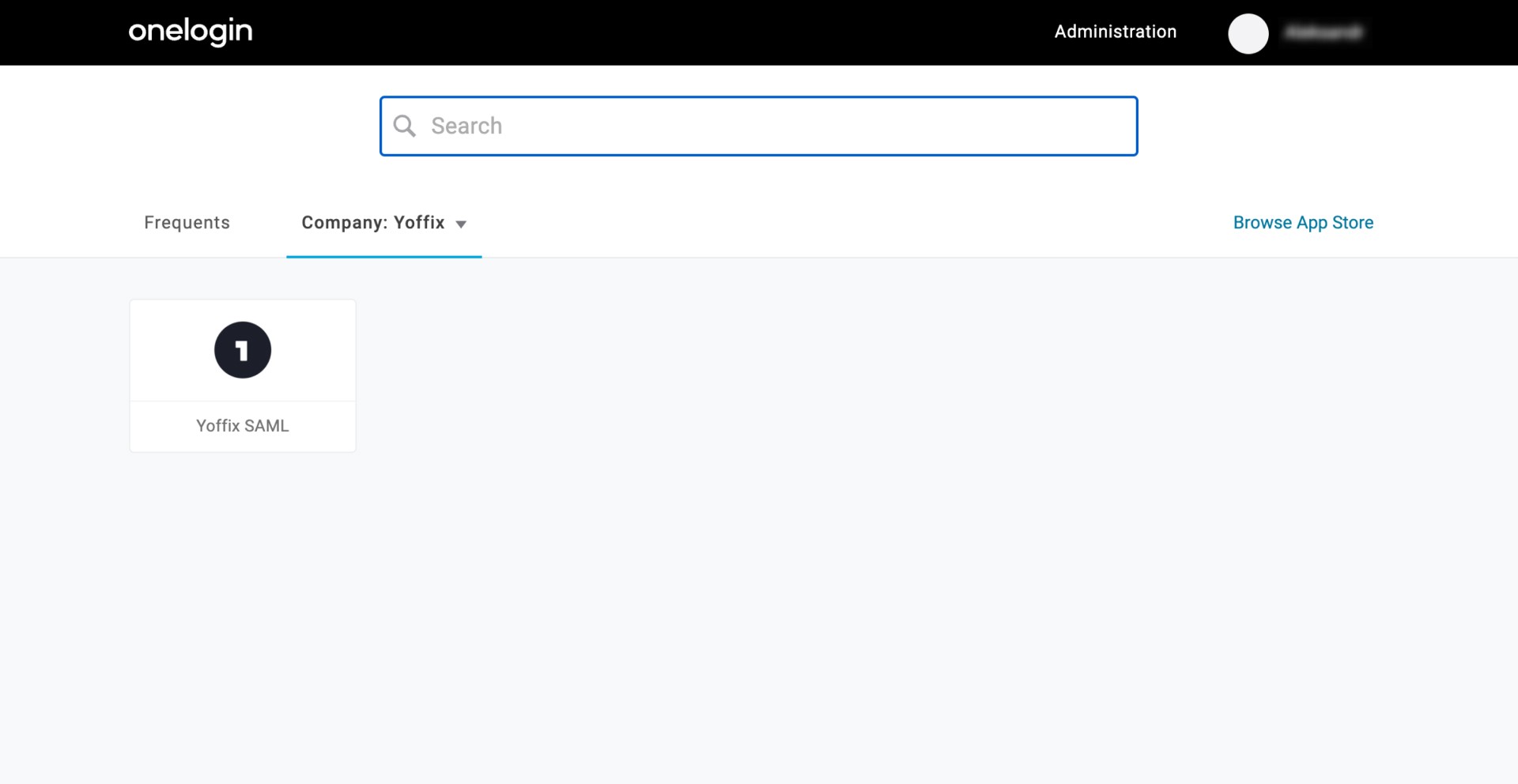
Go to:https://<yourdomain>.onelogin.com/portal
Click Administration in the top right corner.
Step 2: Create a SAML 2.0 Application
Navigate to Applications and click Add App
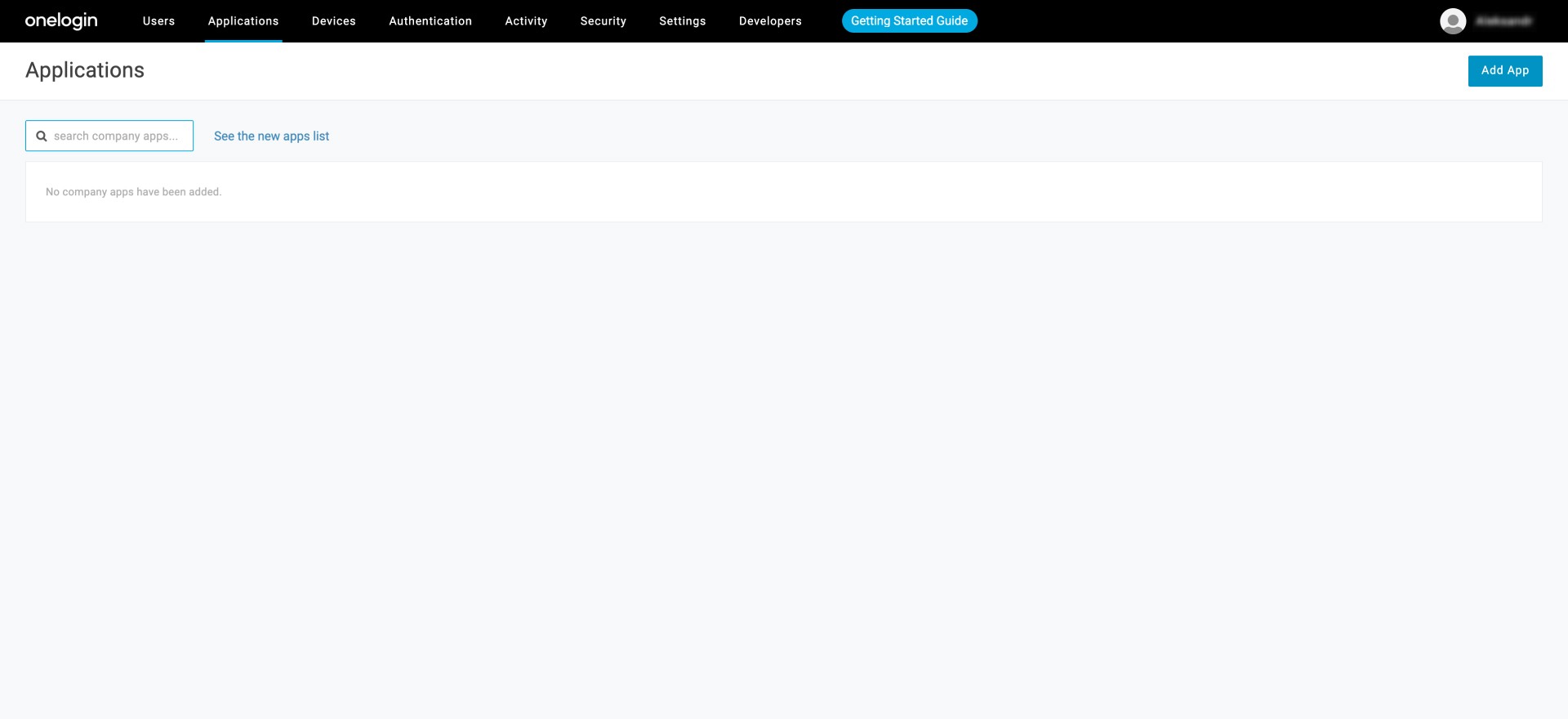
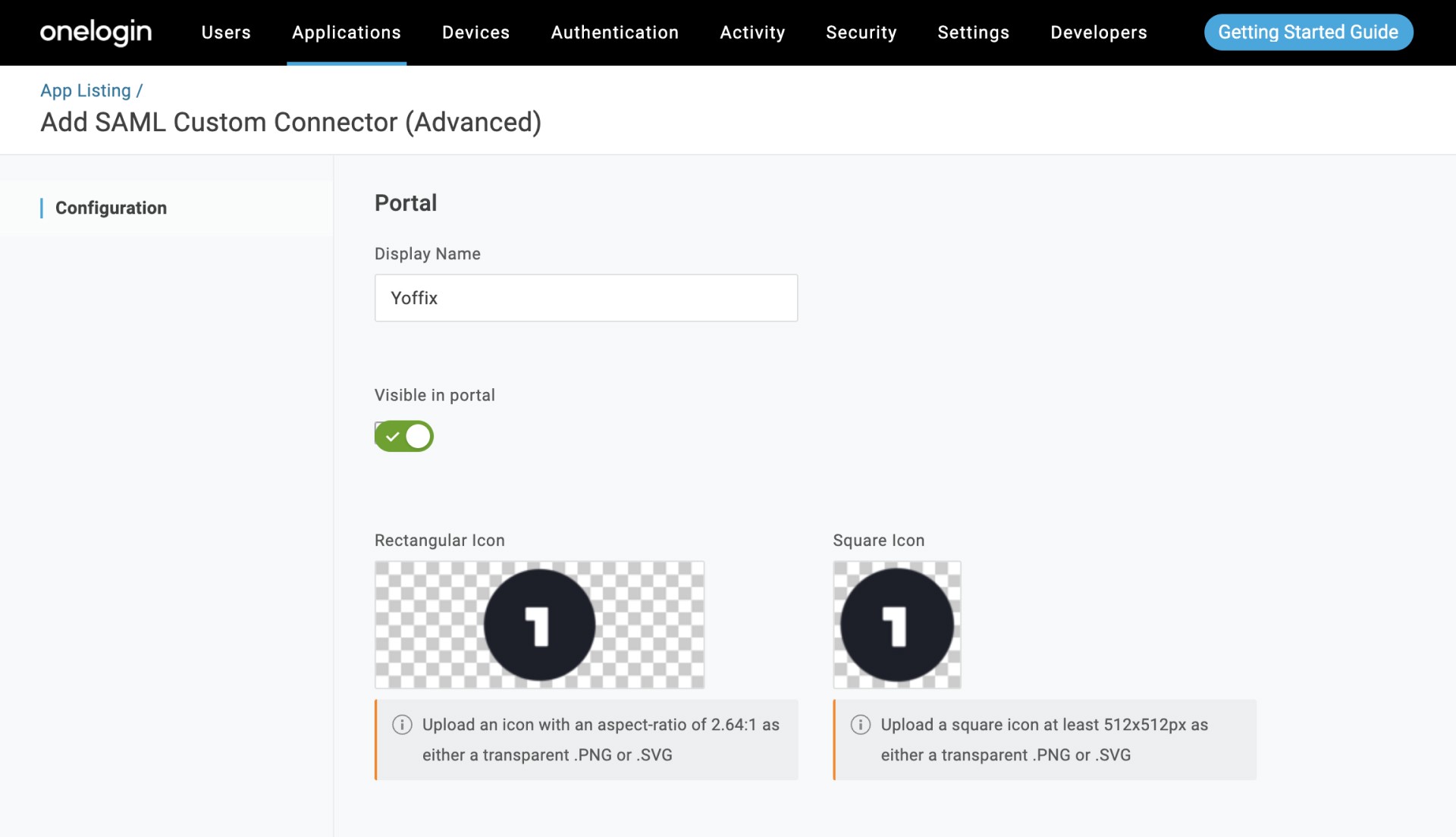
Search for SAML and select SAML Custom Connector (Advanced)

Enter Yoffix as the Display Name and click Save.
Step 3: Configure SAML Settings
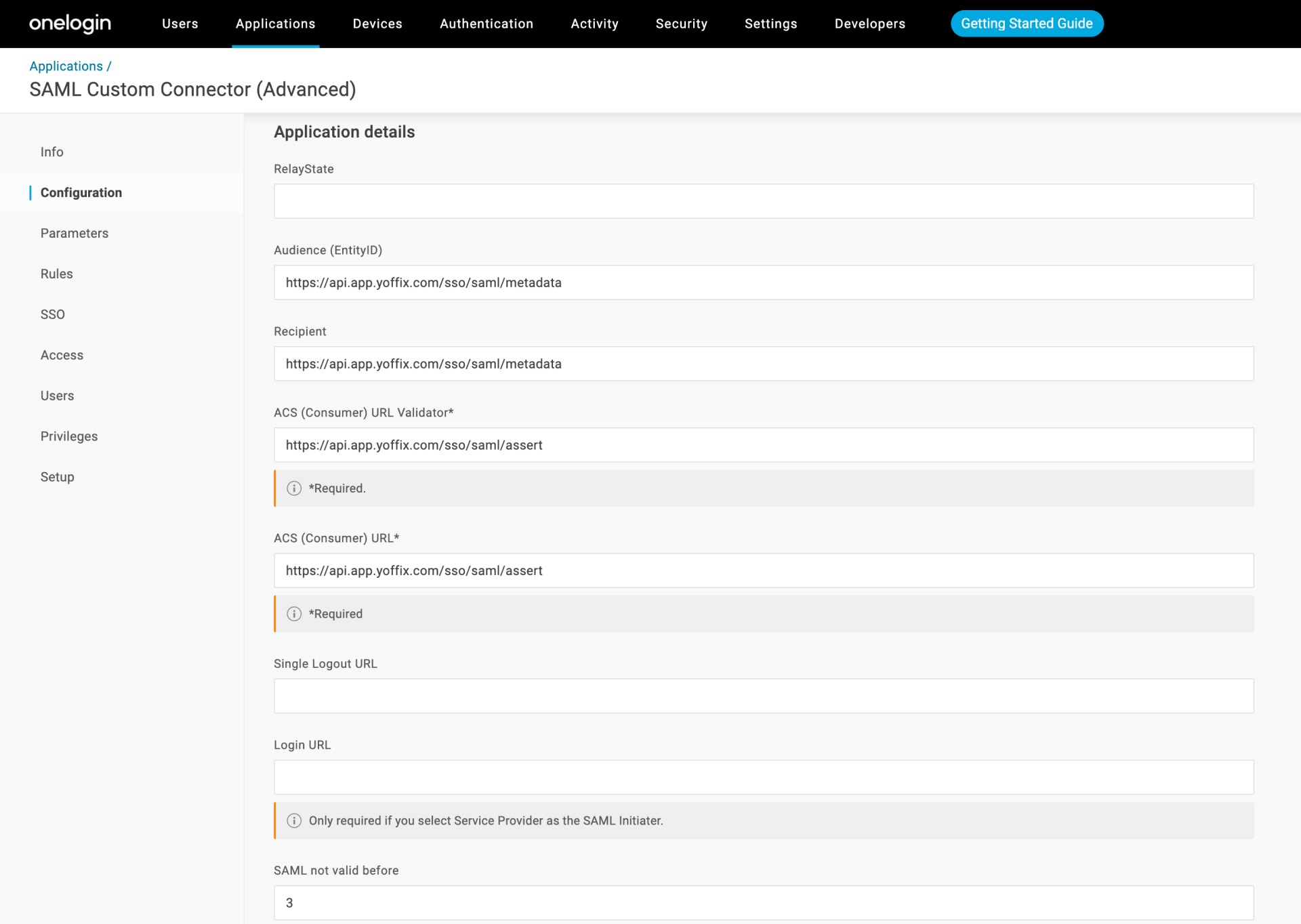
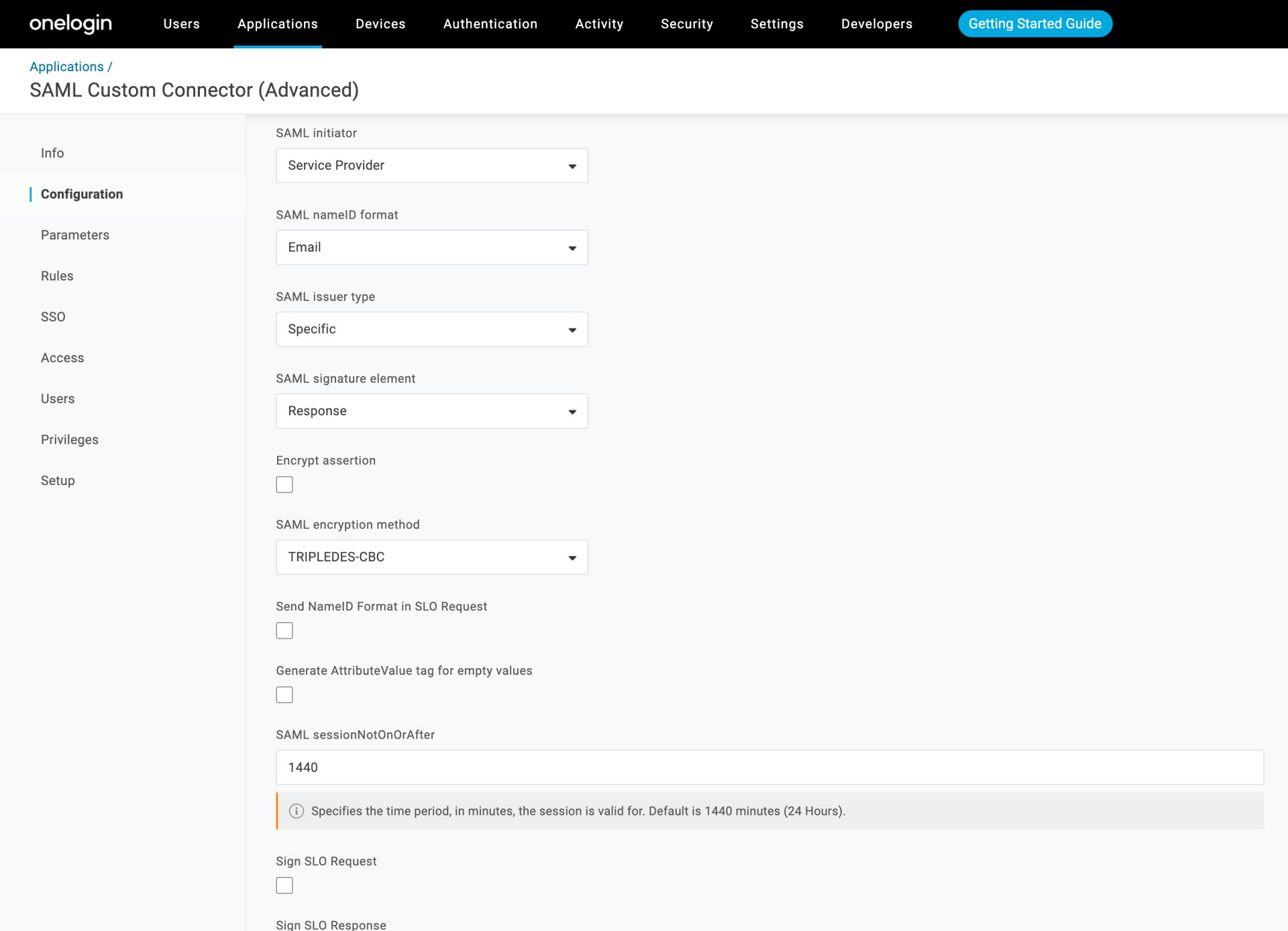
Go to the Configuration tab and enter:
Audience (EntityID):
https://api.app.yoffix.com/sso/saml/metadataRecipient:
https://api.app.yoffix.com/sso/saml/metadataACS (Consumer) URL Validator:
https://api.app.yoffix.com/sso/saml/assertACS (Consumer) URL:
https://api.app.yoffix.com/sso/saml/assert
Additional settings:
SAML Initiator: Service Provider
SAML NameID Format: Email
Leave all other fields at their default values.
Click Save.
Step 4: Configure Parameters
Go to the Parameters tab
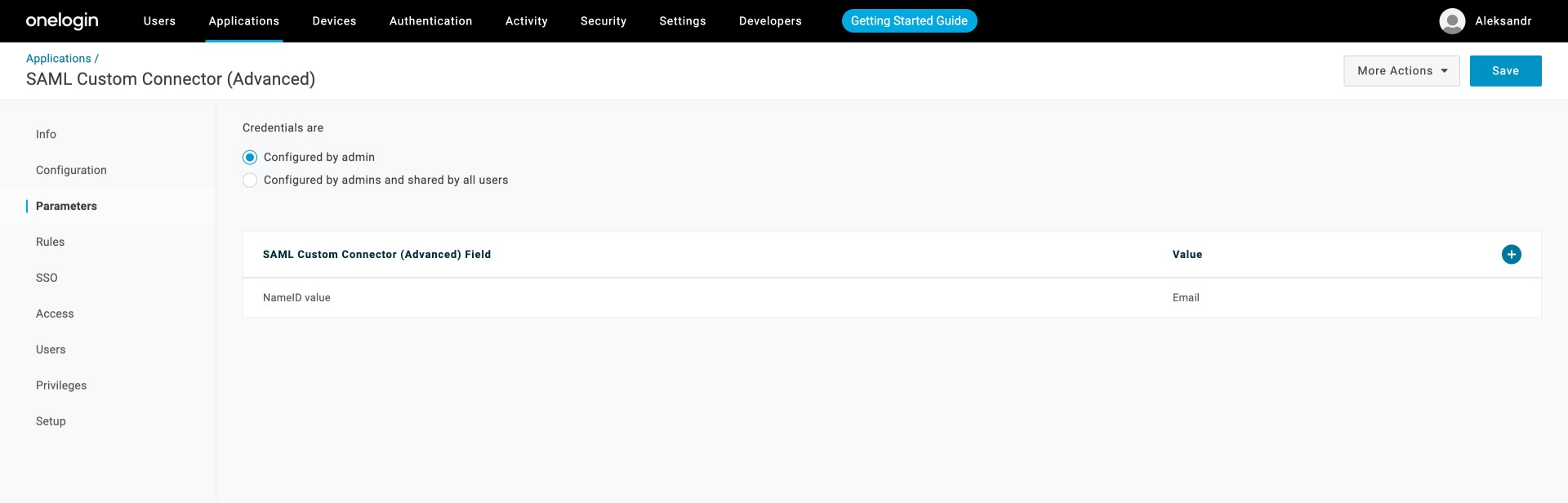
Click “+” and add the following parameters:
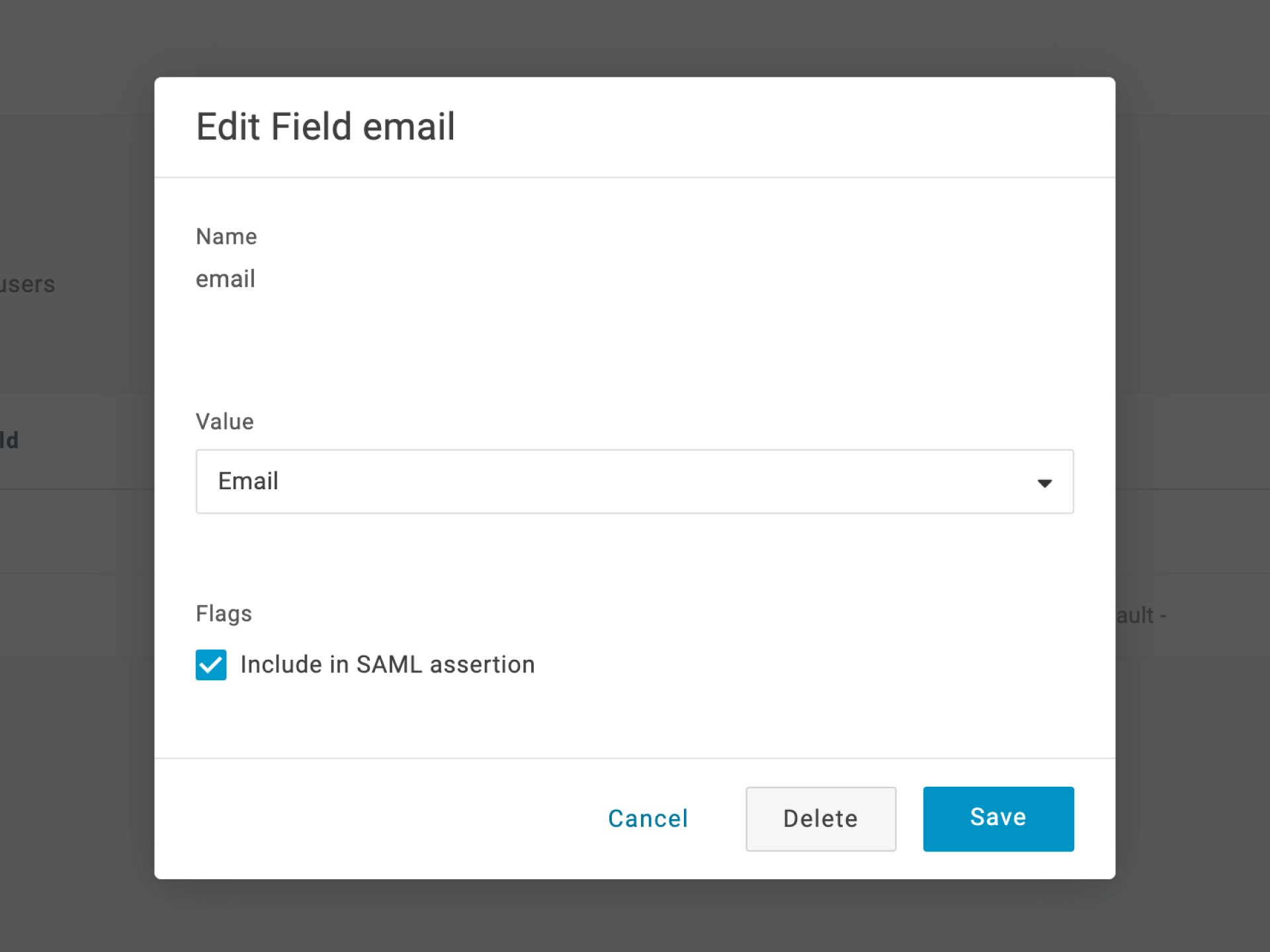
Name:
email
Value: Email
✔ Check “Include in SAML assertion”
Name:
first_name
Value: First Name
✔ Check “Include in SAML assertion”

Name:
last_name
Value: Last Name
✔ Check “Include in SAML assertion”
Parameter names are case sensitive.

Step 5: Assign Users or Groups
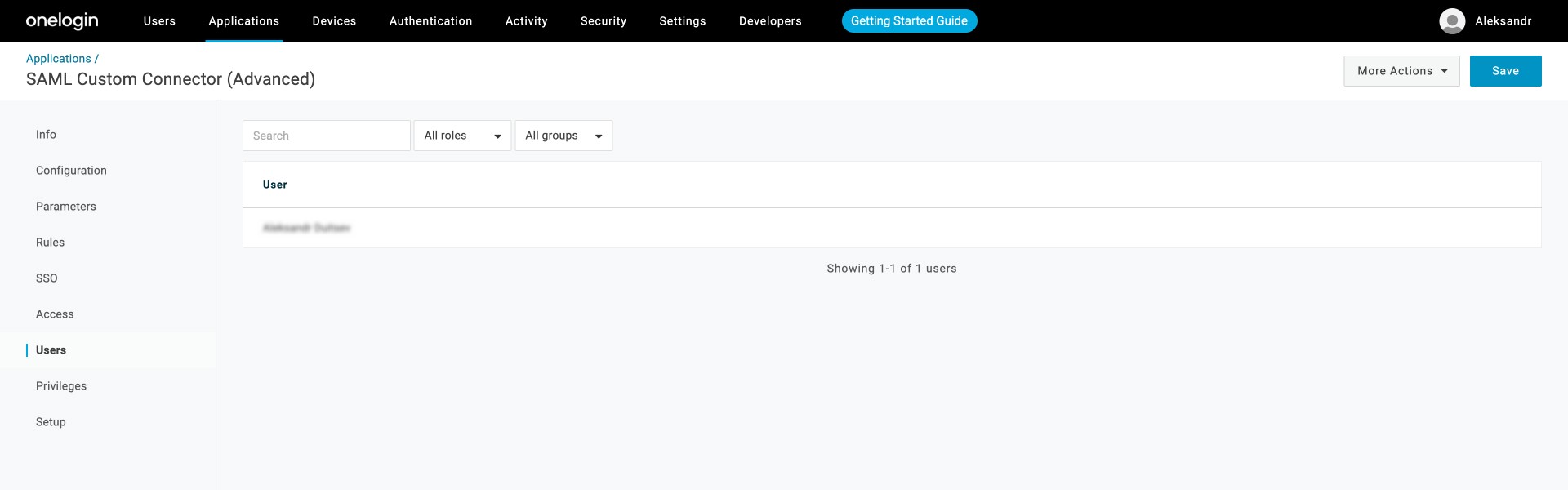
Go to the Users tab
Ensure all users or groups who should use SSO are assigned to the Yoffix application
Only assigned users will be able to authenticate via OneLogin SSO.
Step 6: Retrieve Metadata
Go to the SSO tab
Locate the SAML 2.0 Endpoint (HTTP)

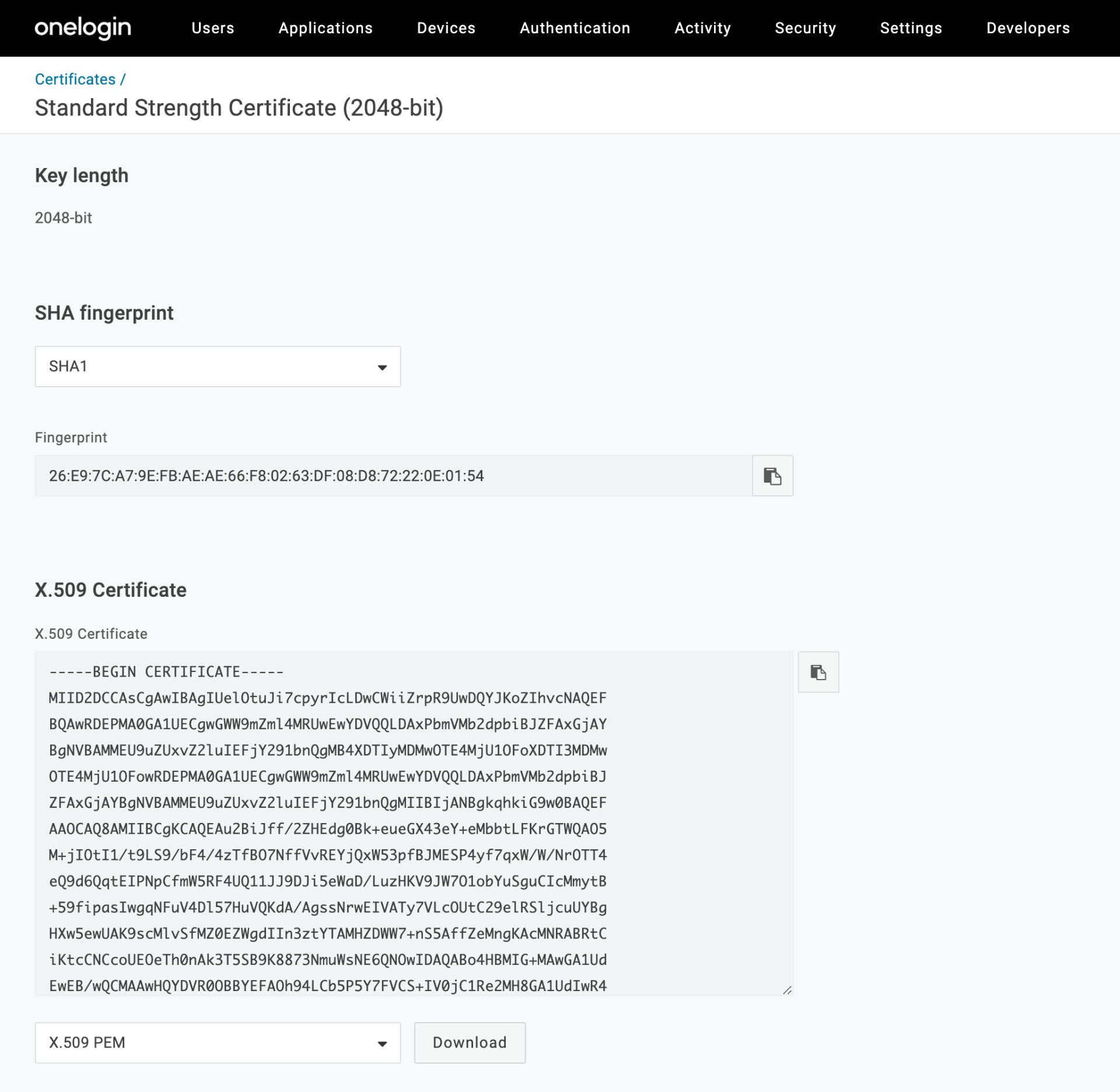
Click View Details under X.509 Certificate to download or view the certificate
Configure OneLogin SSO in Yoffix
Go to Settings → SSO in Yoffix
Select SAML
Enter:
SSO URL (SAML 2.0 Endpoint from OneLogin)
X.509 Certificate
You can configure up to 10 allowed email domains.
Example:
If your company email format is name@yourorgdomain.com, add:
yourorgdomain.com
Only users with configured domains will be allowed to authenticate via OneLogin SSO.
If you're still experiencing issues, contact Yoffix support at support@yoffix.com — our team will assist you.