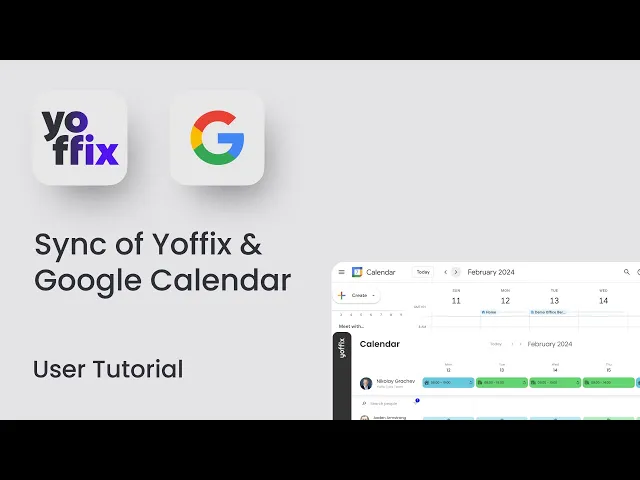
How to connect Yoffix to Google Calendar
The Yoffix Google Calendar integration enables bidirectional synchronization between Yoffix and Google Calendar.
It keeps desk bookings, working locations, and meeting room reservations aligned across both systems.
What the Google Calendar Integration Does
Once configured, Yoffix will:
Sync desk bookings to Google Calendar
Sync working locations between Yoffix and Google
Sync meeting room bookings in both directions
Reflect Google Calendar bookings in Yoffix
Keep office names and room data aligned
This ensures consistent availability and prevents scheduling conflicts in hybrid workplaces.
How the Google Calendar Integration Works
The integration connects your Yoffix account with your Google account.
After authorization:
Bookings created in Yoffix appear in Google Calendar
Bookings created in Google Calendar appear in Yoffix
Meeting rooms are synchronized
Working locations are aligned
Synchronization happens automatically once configuration is complete.
Watch Video Tutorial
How to Set Up the Google Calendar Integration
1. Connect Your Google Account
Go to:
Settings → Integrations → Tools → Google
Select your Google account and grant Yoffix access.
2. Sync Meeting Rooms
To enable room synchronization:
Import meeting rooms from Google
Match each Google room to the corresponding room in Yoffix
Ensure room names are correctly mapped
Room mapping ensures accurate two-way synchronization.

3. Enable Working Location Sync
Activate working location synchronization to align:
Offices
Desk bookings
Location statuses
You must ensure that office names match between Google and Yoffix.
To do this:
Check office names under Google → Buildings and Resources
Copy the exact names into Yoffix
Make sure both systems use identical naming
4. Enable User Authentication
Each user must authenticate their Google account in their profile settings.
This ensures personal bookings and calendar entries are synchronized correctly.
How to Verify the Integration
You can test the integration in both directions.
From Yoffix to Google
Book a desk in Yoffix
Check Google Calendar
The booking should appear with office and desk details
From Google to Yoffix
Create a booking in Google Calendar
Assign a room
Wait a few seconds
The booking will appear in Yoffix
Room bookings, including Google Meet links, are synchronized automatically.
What Data Is Synced?
Desk bookings:
Office name
Desk information
Date and time
Room bookings:
Room name
Participants
Online meeting links
Date and time
Working locations
All synchronization occurs automatically once properly configured.
Why Connect Google Calendar with Yoffix?
Integrating Google Calendar ensures:
No double bookings
Accurate working location visibility
Consistent room scheduling
Seamless Google Workspace integration
Real-time hybrid workplace coordination
It keeps workplace planning aligned across both platforms.